.png?width=357&height=85&name=tpiq-logo%20(375x85).png)
Navigate to the Client live (left hand navigation). Select the client, the tax plan, and it will take you to the "Plan details and strategies" screen.
In the top right there is a "Create a new strategy" button. Click that for a pop-up to appear.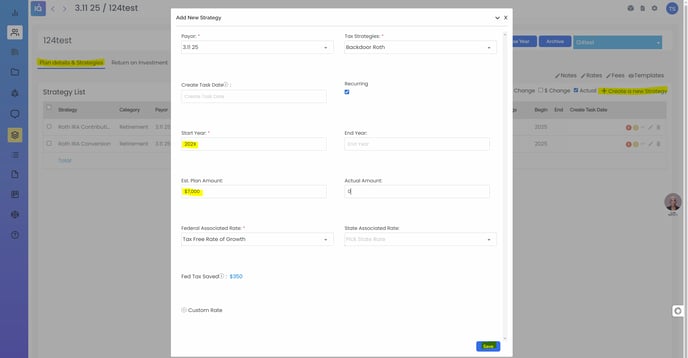
Select the related party, the strategy (strategies will only appear for associated related parties - For example, a business strategy will only show on the list if a business is selected in related parties).
The plan amount is the expense, deduction, or contribution the taxpayer needs to make to receive the tax benefit.
The federal associated rate is either the tax rate or tax free annual growth rate for the strategy.
By adding a task date, a blue circle T icon will appear near the trashcan on the right side of the screen for that strategy, after hitting Save.
We pre-fill the fields we already know, such as whether a strategy is recurring, the start year, etc.
Actual amount is for after you've finalized and implemented the plan. You can fill that in to show projected versus actual numbers on the ROI report.
Example: A backdoor ROTH strategy starts in 2025. The Est. Plan Amount is $7,000 max for under age 50, but since it's a trad to ROTH conversion there's no tax deduction up front. Instead the federal associated rate becomes the tax-free growth rate of around 5-8%. You can also select a custom rate if you want a different one. There is no state impact to this strategy typically.
Note: You can also re-upload a client's PDF 1040 via jAINe at the top of the TaxPlanIQ dashboard for our AI auto suggestions and plan amounts pre-filled. You can associate it to an existing client but you'd need to create a new tax plan to get the AI suggestions again.